Get up and running with Protu in five steps.
Before you begin
You'll need:
An invitation from Protu to create your workspace
Your company name and basic details
Email addresses for any colleagues you want to invite
Step 1: Create your workspace
After receiving your invitation:
Click the link in your invitation email
Enter your company name
Set up your account (email and password)
You're now the Owner of your workspace
Your workspace is where all your teams, roles, candidates, and insights live.

Step 2: Invite your team (optional)
If you have colleagues who'll help with hiring:
Go to Settings → Users
Click Invite user
Enter their email and select Admin as their role
They'll receive an invitation to join
Admins have full access to create roles, invite candidates, and view insights. You can add more users anytime.
Step 3: Create your first role
A role is a hiring container — it holds candidates for a specific position.
Go to Roles
Click Create role
Enter a title (e.g., "Product Designer")
Add a description (optional)
Choose Open to start hiring immediately, or Draft to set up first
See Creating roles for detailed guidance.
Step 4: Invite candidates
With an open role:
Go to your role
Click Invite candidates
Enter candidate names and email addresses
Send invitations
Candidates receive an email with a link to complete their assessment. No account needed on their end.
Step 5: Review insights
Once candidates complete their assessments:
Go to your role
Click on a candidate to view their profile
Review their insights — contribution style, markers, and attributes
Compare candidates to make your decision
What's next?
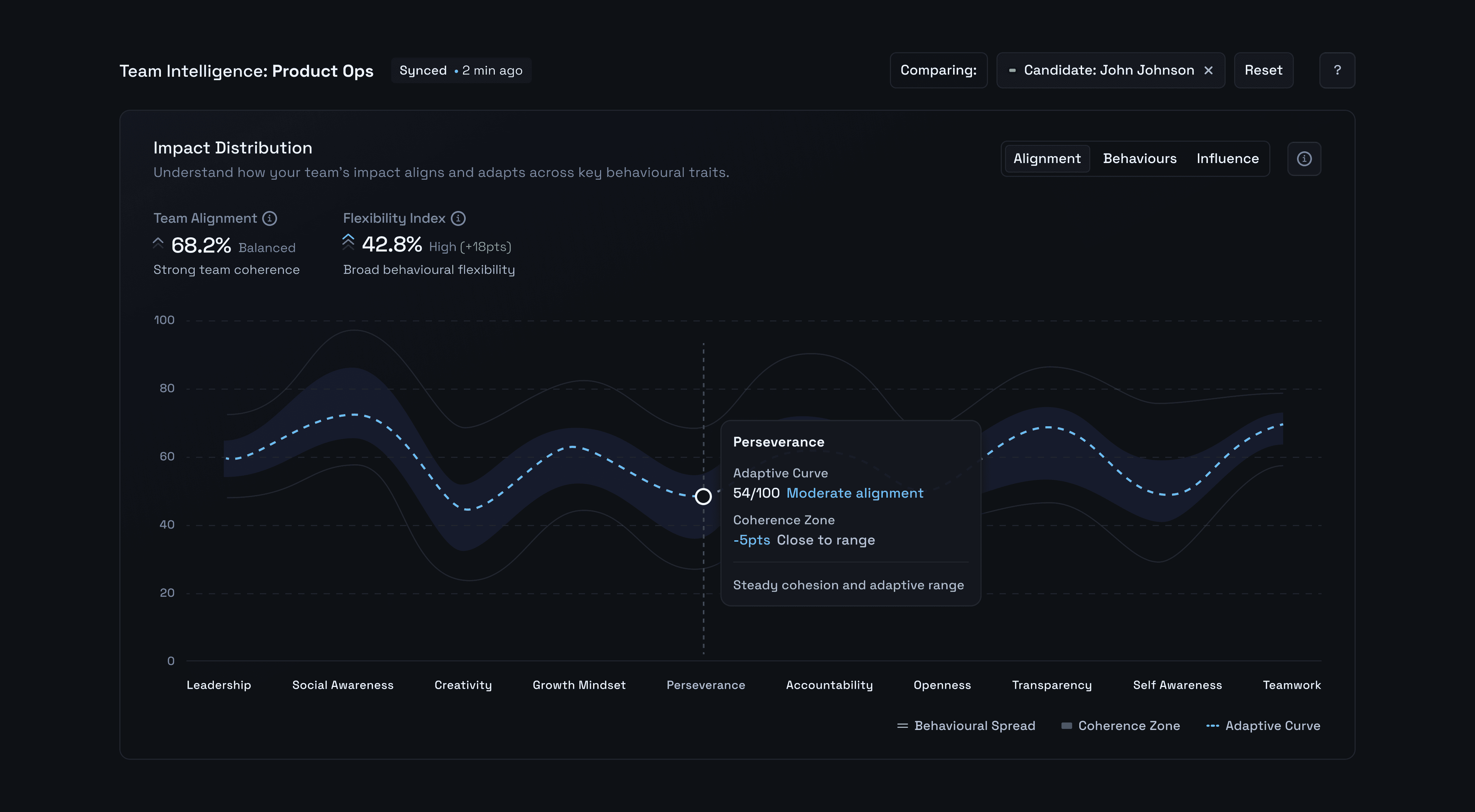
Set up Team Intelligence
If you want to compare candidates to your existing team:
Create a team
Add employees
Invite them to complete assessments
Once enough complete (minimum 3), you can compare candidates to team dynamics
Add your branding
Go to Settings to upload your company logo. It'll appear in candidate and employee invitation emails.
Learn more
Understanding Protu — How it all works
Key concepts — Important terms explained
Creating roles — Detailed guide