Get support related to users and your account
Signing in to Protu
To access your workspace and all of Protu’s features, you’ll need to sign in to your account.
How to sign in:
Go to app.protu.io directly or Click “Sign In” at the top right of www.protu.io
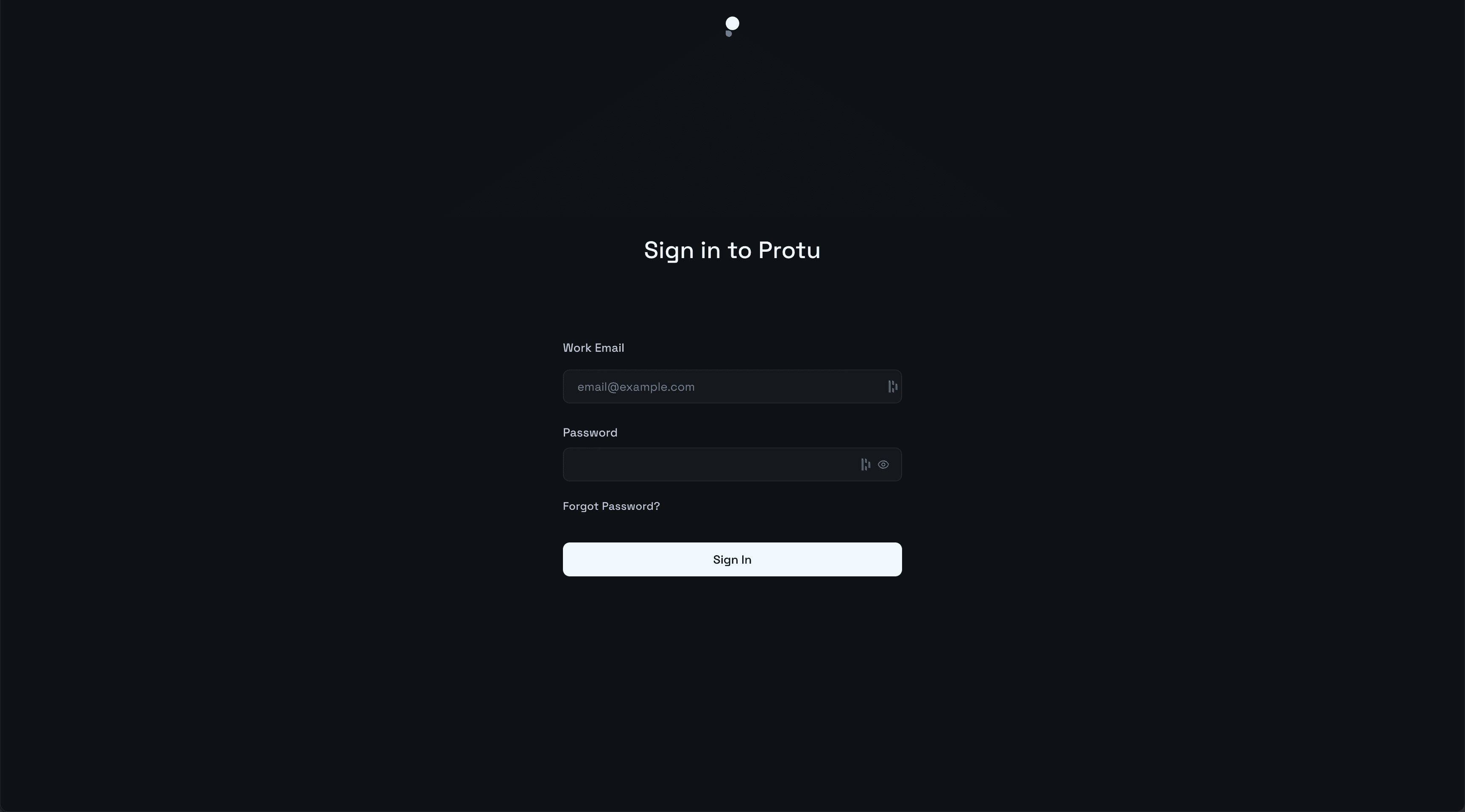
Then:
Enter the email address you were invited with (usually your work email, e.g. john@acme.com)
Enter your password
Click Sign In - you’re in!
Trouble signing in?
Use the “Forgot Password” link on the sign-in page to reset your password
Or contact support if you still need help
Inviting a new Admin?
First-time users will receive a secure invite link via email. This allows them to set their password and access the platform safely.
Roles in Protu: Owners & Admins
Protu has two key account roles:
Owner
Usually the person who first set up your organisation’s account. Has full permissions across the platform, including billing and workspace settings.
Admin
Can create and manage roles, invite and manage users, invite candidates, access all team and candidate insight.

Adding or Removing Users
Both Owners and Admins can manage users via the Settings → Members section.
To add a user:
Go to Members
Click “Invite”
Enter their work email, by default all users will be given ‘Admin’ roles.
To remove a user:
Find the user in the list
Click “Remove Access”
Removed users will no longer have access to the platform. All of their past actions remain securely logged.
Managing Access to Roles
By default, all users added have access to all roles.
This means they can:
View all candidates and their insights
Edit roles
Make hiring decisions
Account Settings
Your account settings control your personal preferences and access.
To access:
Go to Members
Click “Invite”
Enter their work email, by default all users will be given ‘Admin’ roles.
This will open the Account tab, where you can update:
Your name
Password
Member Management
Also in Settings, the Members tab shows:
A full list of users
Roles and permissions
Date joined and roles created
Invite or remove users
Owners can transfer ownership to other members, remove or invite admins
Admins, can only invite other members.
Removed users will no longer have access to the platform. All of their past actions remain securely logged.